LR024b - LR/Classic & LR/Cloud KEYWORD Sync BehaviorLr/Classic <-> Lr/Cloud KEYWORD Sync BehaviorV01 – LrC/15.4. LR/9.4 – 6/18/2026
V02 – LrC/15.4. LR/9.4 – 6/25/2026
ContentsLink between Cloud and Classic Keywords LrC Actions related to Keyword sync Assign a keyword to a synced image in LrC Remove a KW from synced image in LrC Delete KW used on synced image(s) in LrC Move a KW to a different place in the hierarchy Add a KW to an image in Lr/Cloud Add hierarchical KW to an image in Lr/Cloud Delete a KW from an image in Lr/Cloud
IntroductionMany folks assume they know, or just trust their instincts, as to what happens to synced images when they perform various actions. Then later they discover unexpected results or it didn’t do what they thought it would do. This is part 1 of a 3 part series concerning the sync process between Lightroom Classic (LrC), and Lightroom (Lr or Lr/Cloud). Part 1 LR024 - LR/Classic & LR/Cloud Sync Behavior Part 1b LR024b - LR/Classic & LR/Cloud KEYWORD Sync Behavior Part 2 LR025 - Changing Which LrC Catalog Syncs with Lr/Cloud Part 3 LR026 - Fixing Sync Problems caused by switching the Sync Catalog Part 4 LR027 - Clear LR/Cloud and start sync over This is part II of the “LR/Classic & LR/Cloud” blog. If you haven’t done so already, please start with part 1 which contains an overview, terminology I use and for both LrC and LR/Cloud commands other than those related to keyword syncing what affect those commands have on synced images In the paragraphs below, I first discuss various operations you can perform in LrC and what affect they have in Lr/Cloud. This is followed by a section on actions you can take in Lr/Cloud and what affect they have in Lr/Classic. Link between Cloud and Classic keywordsWhen a keyword from Lr/Classic is added to Lr/Cloud, or vice-versa, a hidden link is established between the flat KW in Lr/Cloud and the associated KW in Lr/Classic at whatever hierarchical level that KW is in Lr/Classic. That link is maintained even if the keyword in Lr/Classic is subsequently renamed or moved. Keywords in Lr/Cloud can’t be renamed and are not in a heirerarcy so can’t be moved so we don’t have to worry about those cases.
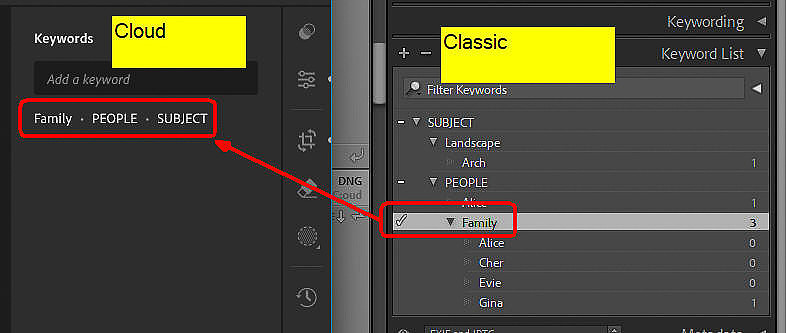
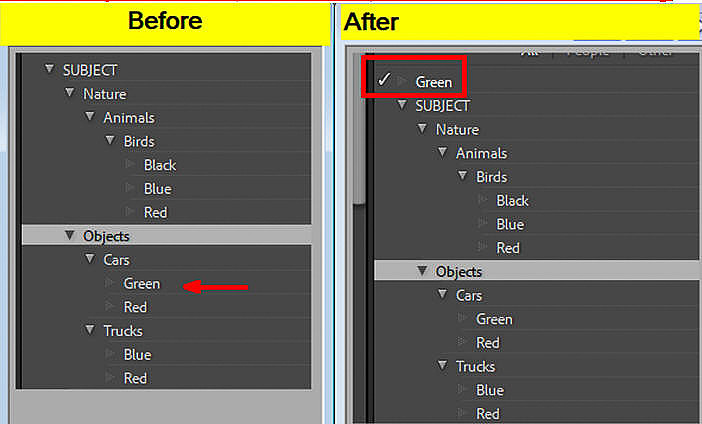
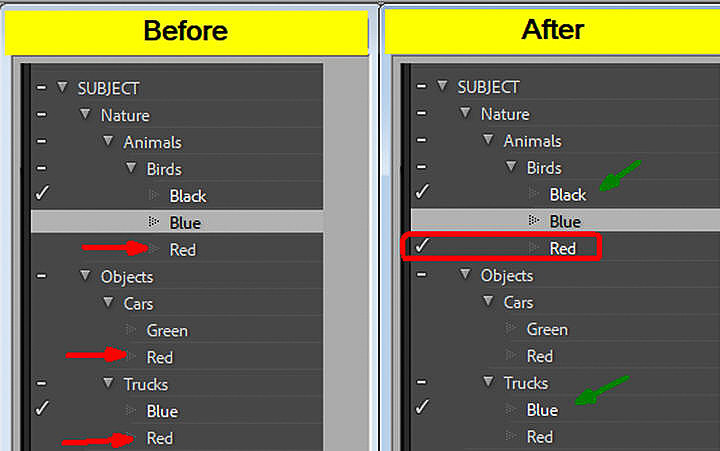
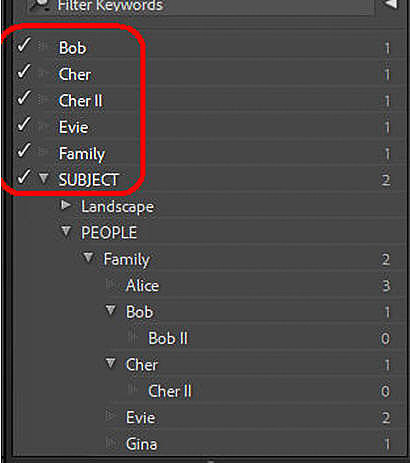
LrC Actions related to Keyword syncThese are actions you can execute in Lr/Classic that affect things synced with the Lr/Cloud. With LrC/15.4, Adobe added Keywords to what syncs with Lr/Cloud. While the concept is great, there are a fair number of complexities when trying to map a hierarchical structure with a flat one. In this section are the specifics for keyword changes made in Lr/Classic and how they are reflected in Lr/Cloud. In the descriptions I’m assuming that only 1 image is selected – especially where I talk about the checkmarks and minus signs in the Keyword List. If more than one image is selected these actions are applied to each image individually Add new Keyword Lr/ClasicAdding a new keyword to the Keyword List panel, Keywording Panel, in Lr/Classic does nothing in Lr/Cloud until/unless that keyword is assigned to an image Assign a keyword to a synced image in Lr/ClassicIn Lr/Classic, each keyword assigned to a synced image, along with all parents of that keyword, will become individual (flat) keyword’s in Lr/Cloud. So, if in Lr/Classic you have the hierarchy “SUBJECT -> PEOPLE -> Family” and assign “Family” to an image, it will become 3 separate keywords in Lr/Cloud, “SUBJECT”, “PEOPLE”, and “Family”. If any of those keyword’s already exist in Lr/Cloud, the image will be attached to them. If any of those keyword’s do not already exist in Lr/Cloud, they will be added and attached to the image. Remove a Keyword from a synced image in Lr/ClassicIf you remove an explicitly assigned Keyword from one or more synced images in Lr/Classic, the removed keyword is removed from those synced image(s) in Lr/Cloud unless the removed keyword is a parent of some other explicitly assigned keyword. In this case the parent keyword is still implicitly assigned and therefore is still kept in Lr/Cloud If the removed keyword is a parent keyword the only way to remove it from an image using Lr/Classic is to un-assign it from the image if was explicitly assigned (i.e., get rid of its checkmark) and also un-assign all children keywords from the image. As long as there is at least one child KW assigned to the image, the parent will remain assigned to the image in both Lr/Cloud and LR/Classic. If the keyword being removed is a child keyword and its un-assignment results in a parent (at any level) to lose its implicitly assigned status (no longer has either a minus sign or checkmark in the Keyword list), then that parent is also removed from the image in Lr/Cloud. Delete Keyword in Lr/Classic that is used on synced image(s)If you delete a keyword from Lr/Classic, that keyword as well as all of its children keywords are removed from all images in Lr/Classic and from all synced images in Lr/Cloud that have those keywords. It should be noted that this may not delete all occurrences of the keyword in Lr/Cloud. Let’s say you have “red” under “cars” and another “red” under “trucks”. If you delete keyword “trucks” in Lr/Classic, it will also delete the “red” under trucks in Lr/Classic and will remove both of those words from inmages in Lr/Cloud that were linked to those keywords in Lr/Classic, but will leave the “red” under Cars in Lr/Classic and on images in Lr/cloud linked to the the “red” under cars. In addition, for any image where the deleted keyword had any parent keywords which lost their minus sign as a result of the deletion (no longer have either a minus sign or checkmark in the Keyword List panel), those parent keywords are removed from those images in Lr/Cloud. Move a Keyword to a different place in the hierarchyIf you move a KW in Lr/Classic to a different place in the KW hierarchy, that action causes different things to happen depending on where in the hierarchy you moved the image from and to and whether or not the moved keyword has children of its own that came along in the move. The best way to understand this is by using the check marks and minus signs on keywords in the KeyWord List. For any single image, moving a keyword will not change any checkmarks (explicitly assigned keywords) but may change minus signs (implicitly assigned keywords) on parents in its old place in the hierarchy as well as parent in its new place in the hierarchy. If any keyword associated with any particular image gained a minus sign as a result of the move, that keyword is assigned to the image in Lr/Cloud. Conversely, if any keyword associated with any particular image lost a minus sign as a result of the move, that keyword is removed form the image in Lr/Cloud. Keywords that had a checkmark before the move will still have those checkmarks after the move and those keywords will remain unaffected in Lr/Cloud. Rename a KW in LrCRenaming a keyword in Lr/Classic changes the name in Lr/Cloud for all synced images having either that Keyword assigned either explicitly or implicitly. If you have the same keyword more than once in LrC, with different synced images assigned to each, a new keyword in Lr/Cloud will be created for the changed name. For example in LrC I have “Family > Bob” and “Friends > Bob”. In Lr/Cloud there is only one Bob which is on all images which in LrC have either Bob. If I change the “Bob” under “Family” to “Robert”, then any image that had THAT Bob will loose the “Bob” Keyword in Lr/Cloud and will gain the keyword “Robert” keyword and any image that had had the Bob under Friends will not be altered. Lr/Cloud ActionsThese are actions you can execute in Lr/Cloud that affect things synced with LrC. With LrC/15.4, Adobe added Keywords to what syncs with Lr/Cloud. While the concept is great, there are a fair number of complexities when trying to map a hierarchical structure with a flat one. Below are the specifics for keyword changes made in Lr/Cloud and how they are reflected in Lr/Classic. In the descriptions below, I’m assuming that only 1 image is selected – especially where I talk about the checkmarks and minus signs in the KW List in LrC. If more than one image is selected these actions are applied to each image individually Add a Keyword to an image in Lr/CloudThere are a couple of different situations which may be present in Lr/Classic when a KW is added to an image in Lr/Cloud. Neither of these cases pay any attention to the “Put new keywords inside this keyword” setting.
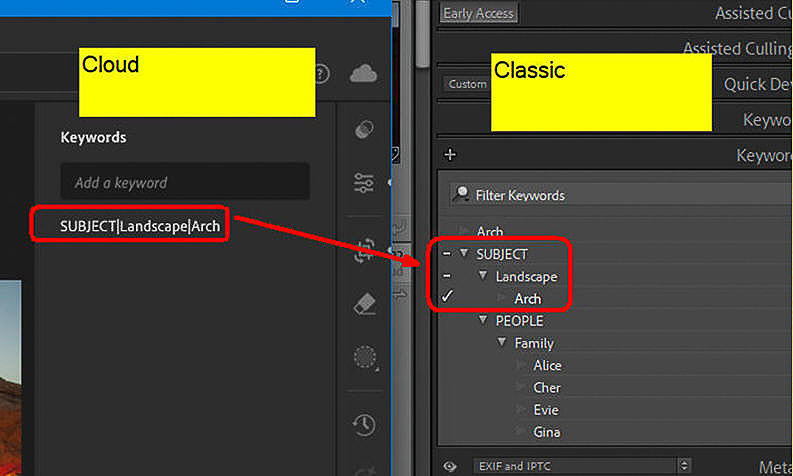
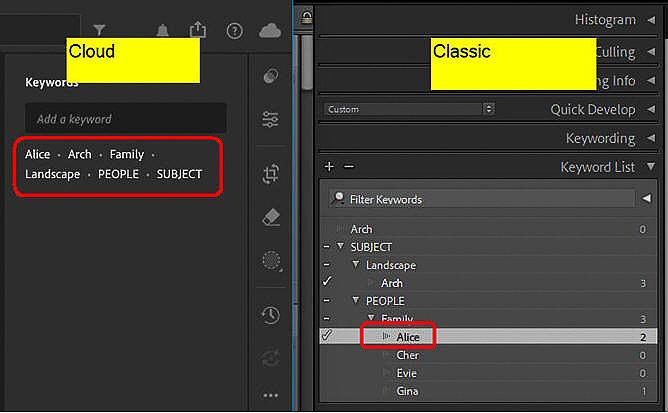
Add hierarchical KW to an image in Lr/CloudTo enter keyword’s in Lr/Cloud that will map to an Lr/Classic keyword which is in a hierarchy, you can use the “pipe” symbol, which is a vertical bar (“|”) or the greater than symbol (“>”) to separate the levels of the hierarchy. For example, in Lr/Cloud, keyword “SUBJECT|Landscape|Arch” (or “SUBJECT>Landscape>Arch”) will, in LrC, map to keyword “Arch” which is under “Landscape” which is under “SUBJECT” in Lr/Classic.
When a subsequent keyword change is made from Lr/Classic to Lr/Cloud on a synced image that has a piped keyword in Lr/Cloud, the “piped” nomenclature in Lr/Cloud will transition to individual keywords. In the example above, I added keyword “Alice” in Lr/Classic. This triggered a sync of the image and due to this the “SUBJECT|Landscape|Arch” keyword in Lr/Cloud became separate “Arch”, “Landscape” and “SUBJECT” keywords (along with Alice and its parents also being added to the image). Other changes to the image in Lr/Classic which trigger a ‘sync’ may also separate a piped keyword into it separate components.
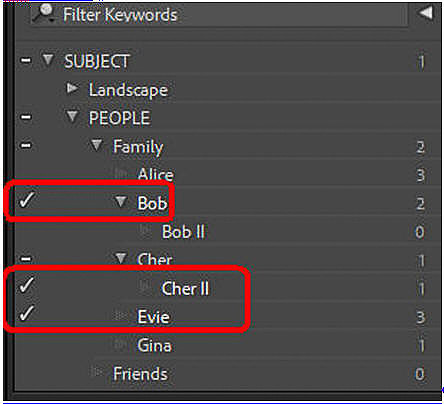
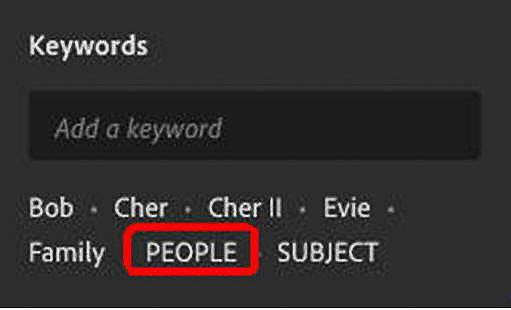
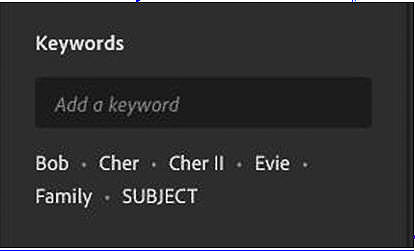
Rename KW in Lr/CloudYou cannot rename a keyword in Lr/Cloud, you can only delete it from an image and then add it back to the image with a different spelling. If you really want it re-spelled wherever it appears, first select all the images with the old spelling, delete the keyword and the with those images still selected add the keyword with the proper spelling. Delete a KW from an image in Lr/CloudWhen a keyword is deleted from an image in Lr/Cloud that keyword is removed from the image in Lr/Cloud and un-assigned from the image in Lr/Classic but will have one fewer image associated with it. Top Keyword: If that deleted keyword was at the top (root) level of the keyword hierarchy in LrC with no children keywords (i.e. is not part of a hierarchy), then that is all that happens. Part of a hierarchy: If that deleted keyword is part of a keyword hierarchy in Lr/Classic the following happens in Lr/Classic:
Complex Example: In Lr/Classic, we have a hierarchy where
Final CommentYou’ve made it to the end of this long and detailed article. I hope you found it informative and useful and that it addressed whatever it was that led you here. If you’ve stumbled upon any errors, omissions, or things that could be presented better, please let me know by leaving a comment. This series of articles related to syncing took me over 5 months to perfom the testing and writing the results and it was very complicated and I'm giving it to you for free. You will notice as you read through this article that you were not required to logon, create an account, or register. I did not ask for your credit card number. You did not have to provide an email address or phone number. You were not bombarded with pop up ads. I did not lure you part way into the article and then tell you to pay for a subscription to get the rest. Nobody paid me to write this article. I have no sponsors. I have no advertisers. I spend many, many hours (days. weeks or months) researching, testing, and writing articles such as this one to help folks such as yourself and to attract people to my web site where they may be inclined to utilize my one-on-one Lightroom Classic Training or Lighroom Help consulting services. So, I am going to ask you for a favor. Please spend 5 minutes and leave a thoughtful comment. That’s it! If you feel especially motivated, post a review on Google and/or Yelp for “Dan Hartford Photo”. Free to you, very helpful to me.
Comments
No comments posted.
Loading...
|