LR024 - LR/Classic (LrC) & LR/Cloud (Lr) Sync BehaviorLr/Classic <-> Lr/Cloud Sync BehaviorAs of LrC/13.4-13.5 and Lr/Cloud 7.4.1-7.5 (August 2024) V01 - 8/19/2024
V02 - Jan 2025
V03 – 4/1/2025
V04 – 6/15/2025
V05 – Lrc/15.4 & LR/9.4 – 6/18/2026
ContentsFundamental Principles of the Adobe Sync processing Add image to “All Synced Photographs” Add image to a synced collection Add a video to a synced collection Un-sync or delete a synced collection Move a synced collection to a collection set Remove image from a synced collection Remove image from “All Synced Photographs” Upgrade a synced catalog to a new version of LrC
Replace Lr/Cloud Originals with a Smart Previews Replace Smart Previews in Lr/Cloud with originals Add video using any Lr/Cloud app Remove/delete image from the “All Photos” list Remove/Delete image(s) from Lr/Cloud Restore (Un-delete) images from Lr/Cloud
Delete Sync.lrdata catalog file
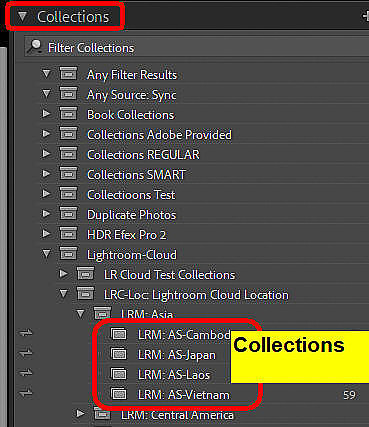
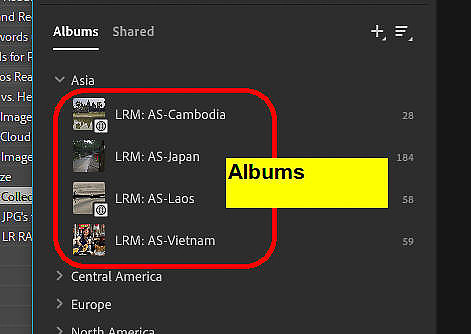
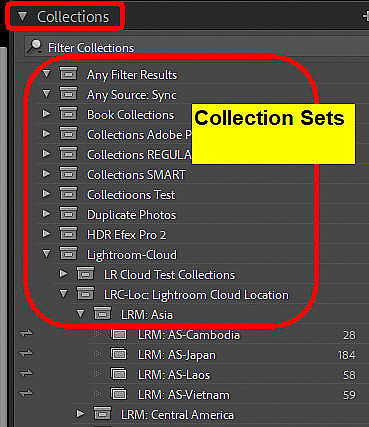
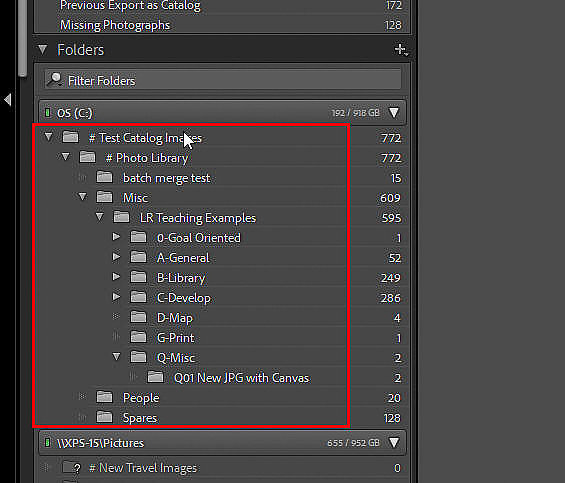
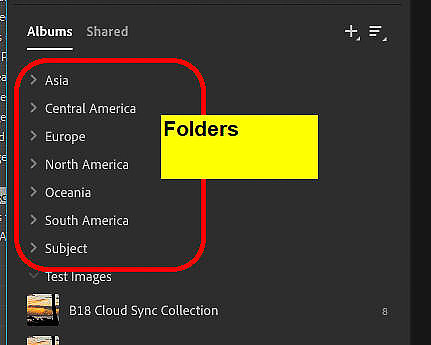
IntroductionMany folks assume they know, or just trust their instincts, as to what happens to synced images when they perform various actions. Then later they discover unexpected results or it didn’t do what they thought it would do. This is part 1 of a 4 part series concerning the sync process between Lightroom Classic (LrC), and Lightroom (Lr or Lr/Cloud). Part 1 (This Part) LR024 - LR/Classic & LR/Cloud Sync Behavior Part 1b LR024b - LR/Classic & LR/Cloud KEYWORD Sync Behavior Part 2 LR025 - Changing Which LrC Catalog Syncs with Lr/Cloud Part 3 LR026 - Fixing Sync Problems caused by switching the Sync Catalog Part 4 LR027 - Clear LR/Cloud and start sync over I’ll start with some definitions and then discuss user actions (and their effect) taken in LrC followed by user actions taken in Lr/Cloud. At the bottom I have a reference to a Lightroom Queen Article about what does and doesn’t sync between the two ecosystems. NOTE: When you are syncing, most of the actions performed in LrC or Lr/Cloud on synced images require information to be “synced” to the other ecosystem. This is not instantaneous as it involves passing things through the internet and processing at both ends. The time required also changes depending on how many images are involved and what information must be passed back and forth. TerminologyLr/CloudI use this term to mean the cloud based Lightroom ecosystem, including all the cloud based apps such as LR/Desktop, LR/Web, LR/Android, and LR/iOS LrCThis is Lightroom Classic which is the catalog and folder based application that only runs on Windows and Macs CollectionA collection is a grouping of images in LrC which can be seen in the collections panel. AlbumAlbums refer to a grouping of images in Lr/Cloud in the albums section. Albums in Lr/Cloud are like collections in LrC. Collection SetThis is like a folder containing collections and only applies to LrC Folder (LrC)Folders in LrC are groupings which can contain other folders or individual image files. These map to folders (directories) on your disk drive that you can see with File Explorer (Win) or Finder (Mac).
Folder (Lr/Cloud)This is a container in Lr/Cloud for albums. It should not be confused with folders in LrC which are completely different things. A folder in Lr/Cloud is similar to a collection set in LrC but the two do not sync between them
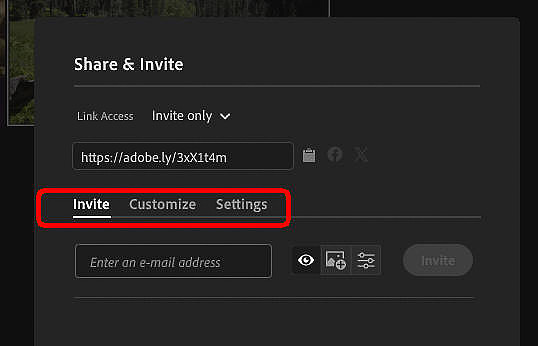
KWStands for KeyWord. Public/SharedI use these terms to mean a collection or album which has been “Made Public” or “Shared”. In either case, this creates a web page containing the images in the collection or album and you are provided with a long and a short URL to access that web page. By default, Public albums/collections can be accessed by anyone who has the URL. Using Lr/Web you can modify (to some degree) how these web pages are displayed. You can also change it to only allow access to people you invite and if so you can also allow users to contribute and/or edit the web page.
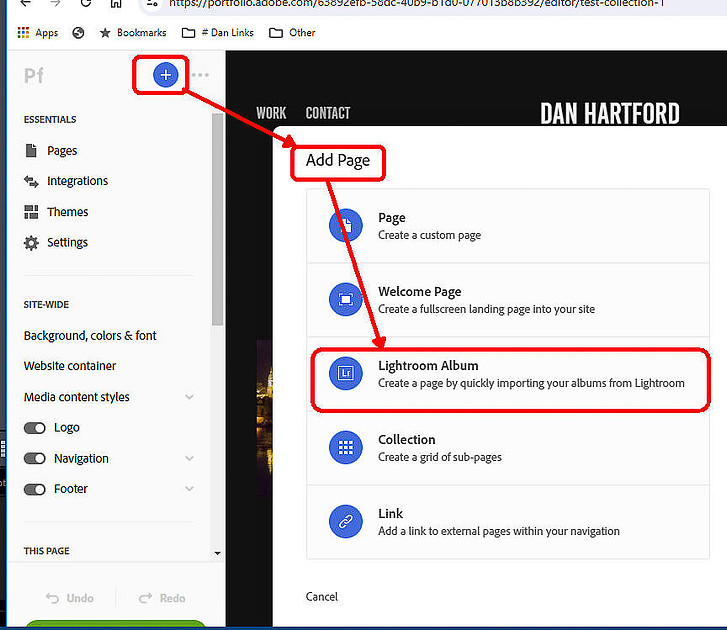
Images are populated in these web pages from the Lr/Cloud albums when the page is displayed to a user in their web browser. So, changes made to images in a public/shared album/collection are visible to the users of those pages automatically. Public/Private status syncs between Lr/Cloud albums and their associated LrC collections. PortfolioThis is a tool which comes free with your Adobe plan. It is used to build a web site which is hosted on Adobe servers. In the context of this article, I am assuming that Portfolio pages of images are created in Portfolio by importing an Lr/Cloud album.
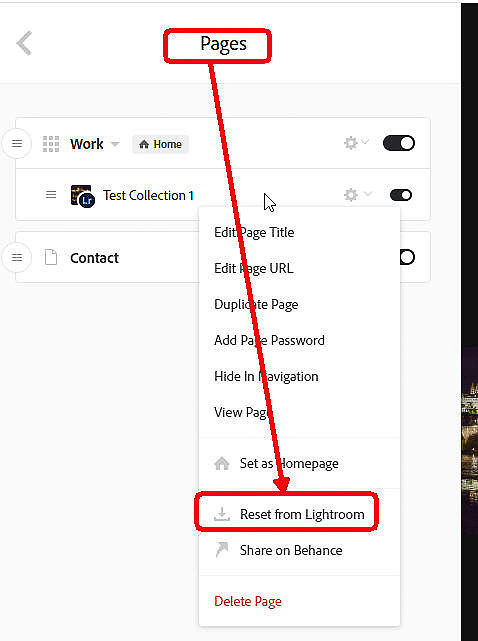
Images in Portfolio pages are not updated automatically when they are changed in the associated album/collection. In this article I refer the “Reset from Lightroom” command. This command is found by clicking “Pages” in the left menu. Then in the pop up selecting ”Reset from Lightroom”. Doing this re-loads the content of the Portfolio Page from the current contents of the album/collection.
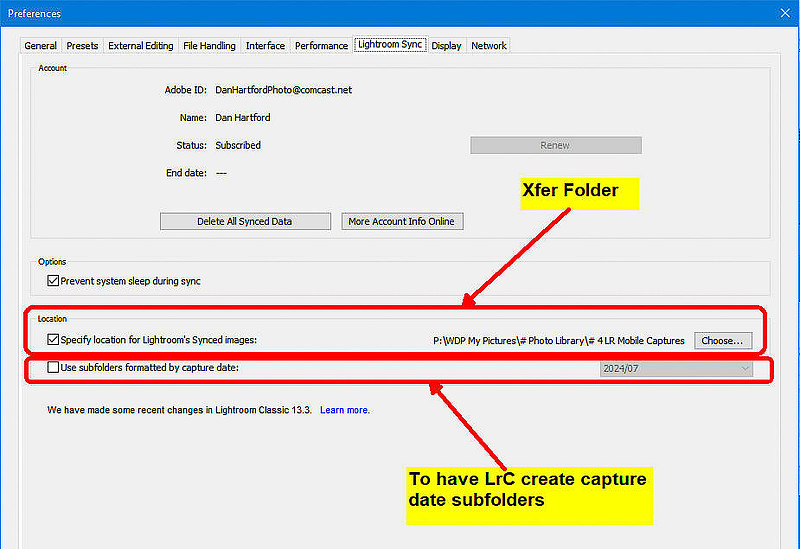
Sync CatalogThe Sync Catalog (or Currently Synced Catalog) is the LrC catalog that is set to sync to Lr/Cloud. Only one LrC catalog can be set to sync with your Lr/Cloud Lightroom system at a time. Xfer FolderI will be using “Xfer Folder” in this article to mean the destination folder where LrC places images downloaded from Lr/Cloud. By default this is “Mobile Downloads.lrdata” in the “Pictures -> Lightroom” folder (on a Mac this is a “package”). Most people use the “Lightroom Sync” tab of the “Preferences” dialog in LrC to change this to a real folder on your system (where your backup routines will back it up with your other images). In either case you can elect to have all the images downloaded from Lr/Cloud go into this one folder or have LrC automatically create subfolders by capture date using a pattern you select.
Original ImageOriginal images are those that entered the LR world through that LR ecosystem. If an image was imported or taken with one of the Lr/Cloud apps then in Lr/Cloud it is considered an original. Conversely LrC original images are those imported into LrC. Fundamental Principles of the Adobe Sync processing
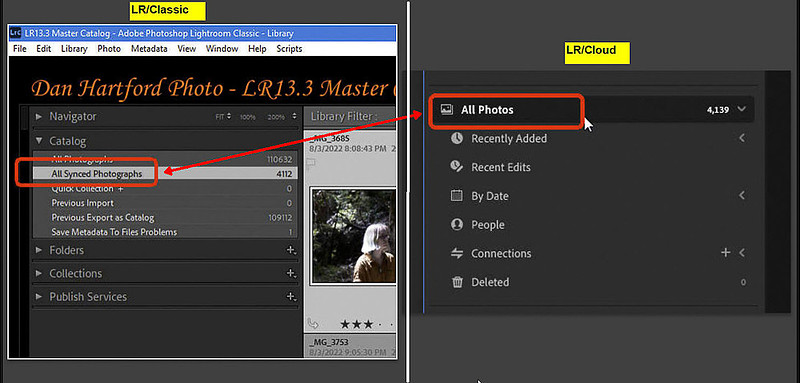
LrC ActionsThese are actions you can execute in LrC that affect things synced with the Lr/Cloud. Add image to “All Synced Photographs”When an image is added to the “All Synced Photographs” special collection in the Catalog panel in LrC, that causes the image to also be copied to Lr/Cloud where it will be placed in the “All Photos” section and establishes a sync relationship for that image between the two eco systems. This does not apply to video’s.
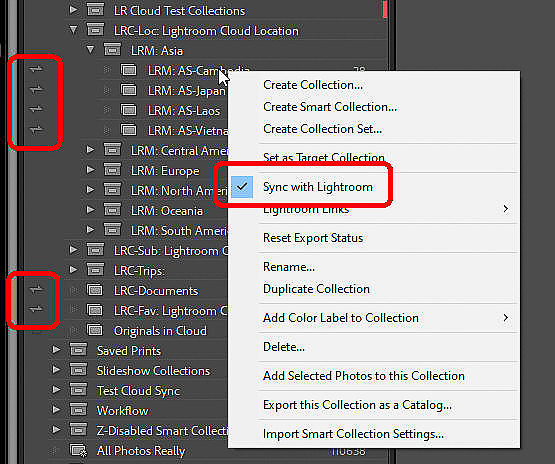
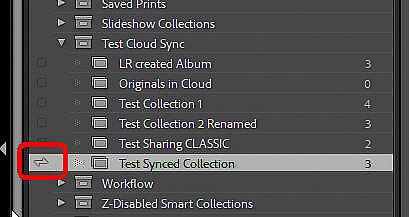
Sync a collectionThis includes changing an un-synced collection to synced or creating a new synced collection. When you do this in LrC, an album is created in Lr/Cloud with the same name as the LrC collection if not already there – this album is not placed into a Lr/Cloud folder but may be moved to one manually after it is created. The collection/album name can subsequently be changed in either ecosystem which also changes it in the other ecosystem. The collection set containing the collection is not communicated to Lr/Cloud. Once the album is created in Lr/Cloud, each of the images in the LrC collection is synced to the associated Lr/Cloud album. Synced collections have a double headed arrow in the collections panel. Clicking this icon (or the space where it would be) toggles the sync status of the collection. You can also right click on a collection name and click “Sync with Lightroom” to toggle the collection sync status on or off.
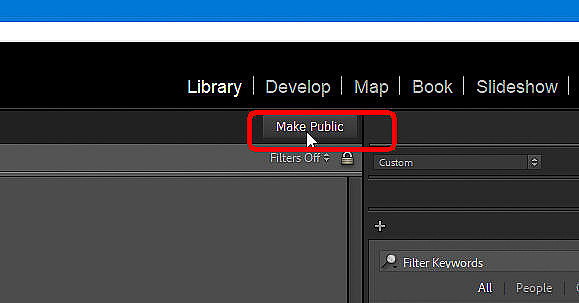
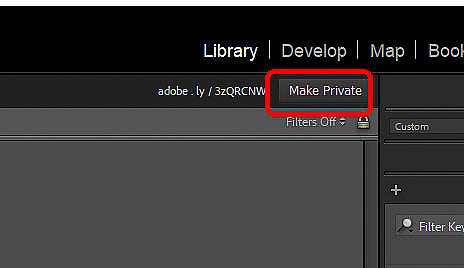
Add image to a synced collectionWhen you add an image to a Synced collection, it is also added to the “All Synced Photographs” special collection in LrC if it’s not already there. See “Add image to the All Synced Photographs special collection” section for what that means. In addition, that image will be added to the equivalent album in Lr/Cloud. If the collection is Public/Shared, the image will be added to the associated web page. It will not automatically be added to any Portfolio page. If a Portfolio page is linked to the collection/album you will need to reset the page in Portfolio to have the new image show up. Add a video to a synced collectionWhen you add a video to a Synced collection, even though it is added to the synced collection it is not added to “All Synced Photographs” special collection in LrC and will not sync to Lr/Cloud Make a collection PublicMaking a collection Public/Shared creates a web page containing the images in the collection (see “Public/Shared” in terminology section above) For an LrC collection to be Public it must first be synced as the thing being made public is the Lr/Cloud album associated with the collection rather than the LrC collection itself. To make a synced collection public, click the “Make Public” button above the top right corner of the grid.
After clicking the “Make Public” button a long URL will show up to the left of that button. After a bit, the full URL will be replaced by a short URL. Click on the short or long URL to see the web page in your browser. Right click on the URL to copy it to the clipboard for pasting into other applications like an email message. Either the long or short URL can be used by anyone to access the web page but the short one is more convenient to share with others. Use Lr/Cloud Desktop app to change the appearance of the web page or to change its access to invited users only. Make collection PrivateIf you have a Public/Shared collection which you no longer want others to see, you need to make it (and its associated album) Private again. Click the “Make Private” button above the top right of the grid.
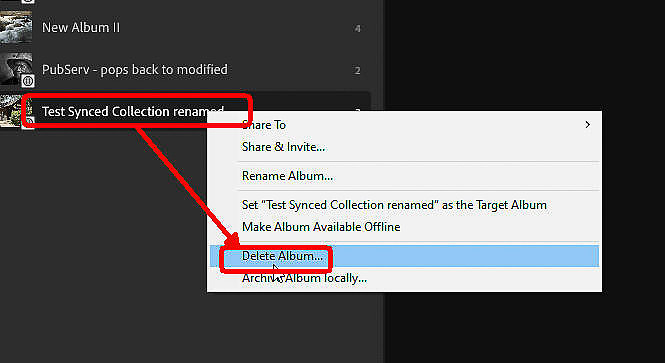
This will delete the public web page and will invalidate both the long and short URL’s for that page. It will also mark the associated album in Lr/Cloud as being Private. It has no effect on images in the collection or album or on pages in Portfolio. Making it public again produces a different URL. Un-sync or delete a synced collectionThis action includes changing a synced collection to be un-synced as well as deleting a synced collection. If you delete or un-sync a synced collection, it removes the associated album from Lr/Cloud. It does NOT remove the images from the “All Synced Photographs” special collection in LrC so those images will remain synced with the Lr/Cloud Ecosystem and will remain in Lr/Cloud’s “All Photos” list as well as any other Lr/Cloud albums and any other LrC collections they are in. If the collection is public/shared, the web page will be deleted and both the short and long URL’s used to access that page will be cancelled. No change will be made to what’s in Portfolio. In this case if in Portfolio you “refresh from Lightroom” it will not complain but also will not do anything as the album in Lr/Cloud no longer exists. Click the “Synced” icon to un-sync or right click and un-check the sync with lightroom checkbox
Edit synced imageThe changes are applied to that image in the Folders Panel as well as every collection containing that image including the “All Synced Photographs” special collection. Assuming that the image is in the “All Synced Photographs” special collection, the changes will sync to Lr/Cloud within the constraints of what does and doesn’t sync (see bottom of this article for link to where this is discussed). In Lr/Cloud the changes will be applied to the image in the “All Photos” list and in every album which contain the image. If the image is in any Public/Shared collections, once the changes sync to the associated Lr/Cloud album(s), those changes will be included when users accesses the web page associated with any of those synced collections/albums. The changes will not automatically be sent to Portfolio. In Portfolio you must “Reset from Lightroom” in order for the changes to be sent to the Portfolio page. Edit videoThose changes will not affect anything in Lr/Cloud Move a synced collection to a collection setIf you move a synced collection to a new or different collection set, this only affects LrC. No changes are made in Lr/Cloud
Remove image from a synced collectionThe image will also be removed from the associated Lr/Cloud album. It will NOT be removed from the “All Synced Photographs” special collection in LrC so the image will remain synced with the Lr/Cloud Ecosystem and it will remain in the Lr/Cloud “All Photos” list as well as any other Lr/Cloud albums it may be in. If the synced collection is Public/Shared, the image will be removed from the associated web page. It will not be removed from any Portfolio pages it may be on. To remove it from the Portfolio page, use the “Reset from Lightroom” command in Portfolio. Remove image from “All Synced Photographs”Removing an image from the “All Synced Photographs” special collection in LrC will also remove it from all of the synced collections it happens to participate in. The Image will also be removed from all Lr/Cloud albums as well as the Lr/Cloud “All Photos” list and is placed in the Deleted list where it will remain for 60 days. The image will be removed from all Public/Shared web pages This is the preferred way to “Stop syncing an image and remove it from Lr/Cloud” This will not remove the image from Portfolio. To remove it from Portfolio pages, after it has been removed from the Lr/Cloud album(s) use the “Reset from Lightroom” command in Portfolio on each page it appears on. Remove/Delete imageRemoving/Deleting the image form the catalog will remove it from all collections it happens to participate in. The Image will also be removed from all Lr/Cloud albums as well as the Lr/Cloud “All Photos” list and will be placed in the Deleted list where it will remain for 60 days. The image will be removed from all Public/Shared web pages This will not remove the image from Portfolio. To remove it from Portfolio pages, after it has been removed from the Lr/Cloud album(s) use the “Reset from Lightroom” command in Portfolio on each page it appears on. Remove/delete a videoRemoving or deleting a video from LrC will also remove it from all LrC collections (synced or not) it had been in. If the video originated in Lr/Cloud, removing it from LrC will also remove it from Lr/Cloud. This seems to be an exception to the “Video’s don’t sync after initial Lr /Cloud to LrC copy” rule. If the video originated in LrC, then nothing changes in regard to Lr/Cloud sync. Rename a synced collectionRenaming a synced collection renames also renames the associated album in Lr/Cloud. If the collection/album is public/shared the title on the Public web page changes to the new name. Sync a different LrC CatalogThis will be discussed in part 2 of this series (“LR025 - Changing Which Catalog Syncs with LR Cloud”) Upgrade a synced catalog to a new version of LrCThe sync process just switches to the upgraded catalog and picks up where it left off from the prior catalog Keyword changes in LrCSee LR024b Addendum pertaining to Keyword sync here
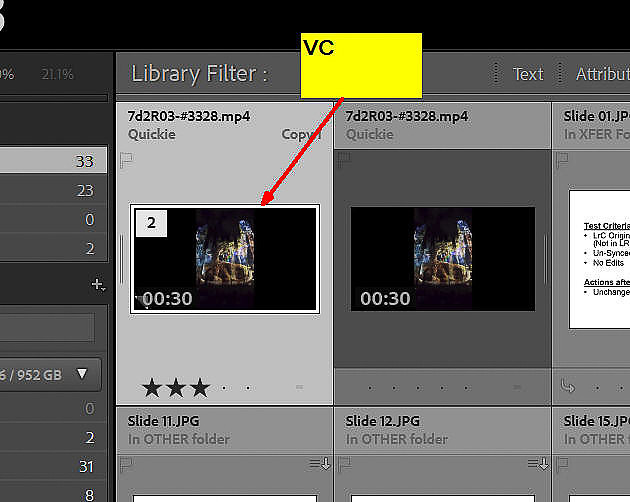
Lr/Cloud ActionsThese are actions you can execute in Lr/Cloud that affect things synced with LrC. Add image to Lr/CloudIf you add (import) an image into any Lr/Cloud app or use the camera built into any of those apps, the image will be added to the “All Photos” list in Lr/Cloud. If the image is not already in LrC, it will add it to the XFER folder in the catalog and a full size original copy will be placed in the designated XFER folder on disk. If the image is already present in LrC and has un-synced edits in Lr/Cloud, it will create VC (Virtual Copy) for the copy coming down from Lr/Cloud and the VC will be associated with the one already in LrC. If the one in Lr/Cloud has not been edited, then nothing syncs. The version syncing down from Lr/Cloud (be it a full size original from Lr/Cloud, the original in LrC if no cloud edits had taken place, or a VC if Lr/Cloud edits had taken place), will be:
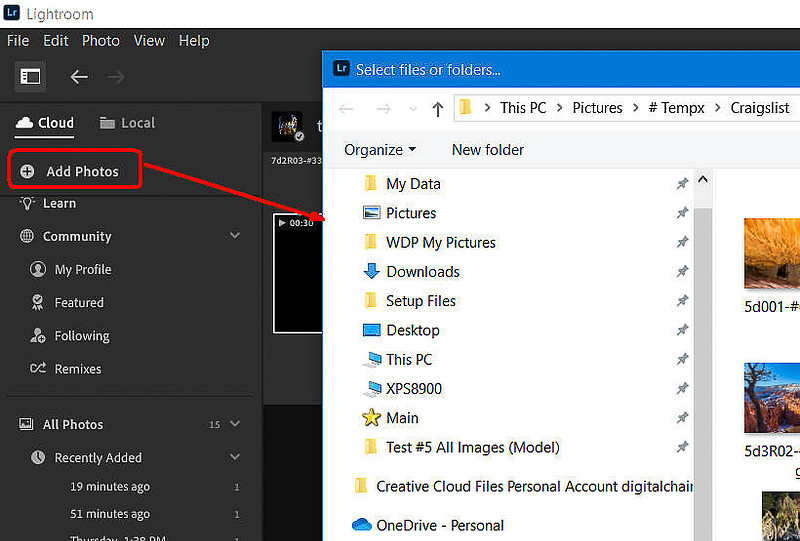
The image in Lr/Cloud will be considered as originating in Lr/Cloud and its storage space in the cloud will be counted against the amount of storage your Adobe Plan contains (typically 20GB or 1TB). From that point on, within the rules of what does and does not sync (see below), things you do to the image in either ecosystem will be synced to the other. Click “Add Photos”, then in pop up navigate and select desired images.
Replace Lr/Cloud Originals with a Smart PreviewsImages imported into Lr/Classic and synced to Lr/Cloud show up in Lr/Cloud as SP’s (Smart Previews) which are proxy images of 2580 pixeles on the long edge and for most purposes are just as good for editing in Lr/Cloud as full size originals. These SP’s do not count against the storage limit in your Adobe Plan. If you have “original” images in Lr/Cloud (images imported directly into one of the LR/Cloud apps, or taken with the camera in one of those apps), they do count against your plan limit. To convert Lr/Cloud originals to SP’s, see this article Replace Smart Previews in Lr/Cloud with originalsIf you import an original image into Lr/Cloud which is already in Lr/Cloud as a Smart Preview synced up from Lr/Classic, the new original replaces the Smart Previews. All the edits stay as they were. The newly imported image will consume some of your plans storage allocation whereas the smart preview it has replaced did not count against your plans storage allocation. Duplicate Photo in Lr/CloudWhen you “duplicate photo” in Lr/Cloud you will get a second copy of the image in LR/Cloud which can be edited separately from the original. So, it is like adding a new photo to Lr/Cloud. The duplicate image is automatically added to “all Photos” and if it was being viewed through an album when the duplicate was created it will also be added to that album. But, there’s inconsistent behavior. If the image the duplicate was created from is an LR/Cloud original, the duplicate arrives in LrC as a full size separate new image, is placed in the XFER folder, is added to “All Synced Photographs” and to any synced collections corresponding to the albums it is in LR/Cloud. If the image in Lr/Cloud is an SP (Smart Preview) synced up to Lr/Cloud from LrC, the duplicate you create in LR/Cloud is also an SP and syncs back to LrC as a new SP only image. This new image is placed in a subfolder of the designated Lightroom downloads folder called “downloaded-smart-previews” as seen in the Folders Panel. It will create the ‘downloaded-smart-previews” folder on disk if it’s not already there but nothing will be placed in that folder on disk. Adding a Copy of the original image file to this folder on disk will make it no longer missing in LrC. The SP is added to the synced collections corresponding to the albums it is in in LR/Cloud. Add video using any Lr/Cloud appIf you add (import) a video image into any of the Lr/Cloud apps it will be added to the “All Photos” list in Lr/Cloud. If the video is not already in LrC, it will add it to the XFER folder in the catalog and a full size original copy of the image will be placed in the designated XFER folder on disk. It is NOT placed in the “All Synced Photographs” special collection, but IS placed in any synced collection relating to any album it had been in. If the video is already present in LrC and it was edited in Lr/Cloud it will create VC (Virtual Copy) for the copy coming down from Lr/Cloud (even if it is identical to the one already in LrC) and the VC will be associated with the one already in LrC. However, the VC badge (dog ear in lower left corner of preview in grid) will not be seen as the video runtime will be on top of it.
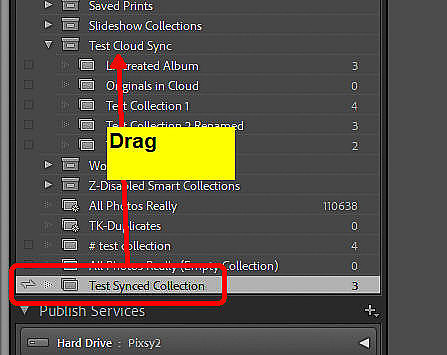
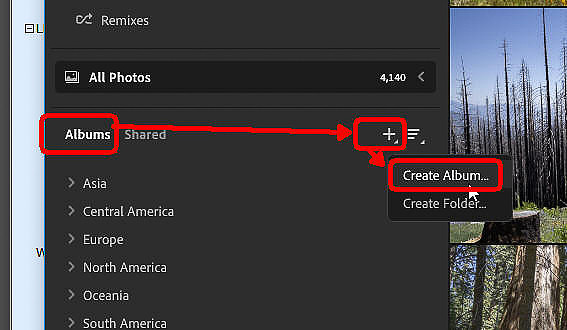
If it had not been edited in Lr/Cloud, nothing comes down to LrC. The version syncing down from Lr/Cloud will NOT be added to the “All Synced Photographs” special collection in LrC however it will be added to any synced collections relating to its albums in Lr/Cloud The original video in Lr/Cloud and its storage space in the cloud will be counted against the amount of storage your Adobe Plan contains (typically 20GB or 1TB). Going forward nothing pertaining to this video will sync between Lr/Cloud and LrC (other than a remove/delete done in LrC). Create an albumWhen you create a new album in Lr/Cloud, a synced collection with the same name will be created in the “From Lighroom” collection set there is no way to change this but you can rename the “From Lightroom” collection set to some other name and new Lr/Cloud albums will continue to be placed into it even with its new name. If there was already a collection there with the same name the new one will get a “-2” added to the collection name After the collection in LrC has been created from the album in Lr/Cloud you can move it to some other collection set.
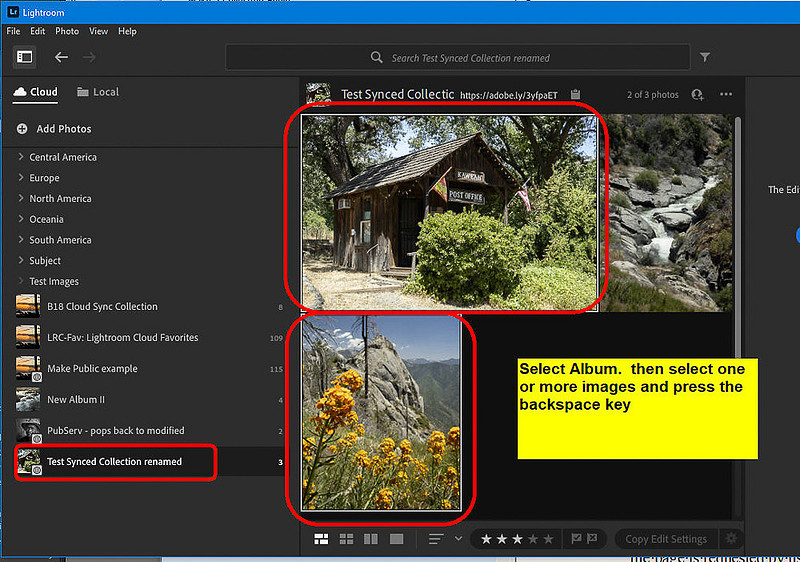
In Lr/Cloud the album can be moved to a folder if desired. Add image to an albumIf you add an image to an album in Lr/Cloud, that image will also be added to the associated LrC collection. If the album is shared/public, that image will automatically be included in the web page related to that album. The image will not be added to Portfolio unless you “reset from Lightroom” on the Portfolio page associated with this album. Add video to an albumIf you add a video to an album in Lr/Cloud before it has synced to Lrc, that video will also be added to the associated LrC collection. However if you add the video to the album after the video was initially synced, it is not added to the corresponding LrC Collection. If the album is shared/public, the video will automatically be included in the web page related to that album. The video will not be added to Portfolio unless you “reset from Lightroom” on the Portfolio page associated with this album. Move album to a FolderMoving an album in Lr/Cloud to a folder (or different folder) only affects the Lr/Cloud apps. The move does not migrate to LrC nor does it affect the Public/shared page (if any) or anything in Portfolio Edit an imageIf you make edit an image in Lr/Cloud, those changes will apply to all albums in Lr/Cloud (including the “All Photos” list) and will sync down to LrC within the constraints of what does and doesn’t sync (see link at bottom). The synced changes will affect the image in the LrC Folder and in all the collections (synced or not) in which that image participates including the “All Synced Photographs” special collection. If the image is in any album/collection which is Public/Shared, the changes will be reflected on the web page the next time it is accessed or refreshed. This does not affect Portfolio Pages. In order for the changes to get into Porfolio you must “Reset from Lightroom” on each page containing the changed image. Edit a videoIf you edit a video in Lr/Cloud it will also change that video in other Lr/Cloud albums and the All Photos list, but will not affect anything in LrC. If the video appears in any Public/Shared albums the edit will show up on the web page for those albums. The edit will not go to Portfolio unless you issue a “reset from Lightroom” command in Portfolio on each page the video appears on Remove image from an albumThe Image will be removed from the associated Lr/Cloud album as well as the associated LrC collection.
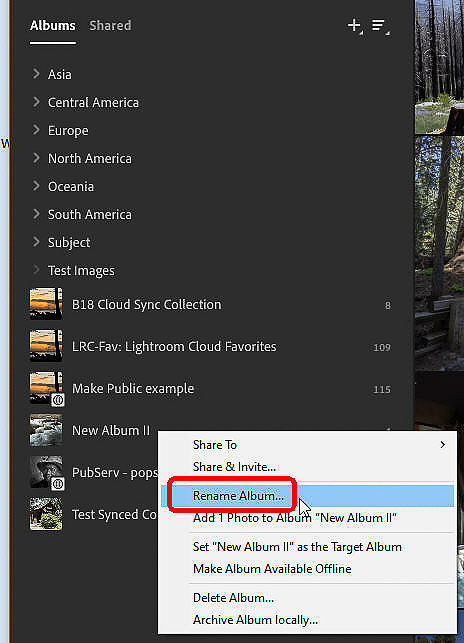
It will NOT be removed from either the “All Photos” list in Lr/Cloud or the “All Synced Photographs” special collection in LrC so the image will remain synced with the LrC Ecosystem and will remain in Lr/Cloud including any other Lr/Cloud albums and LrC collections it may be in. If the image is in any Public/Shared album/collection, the image will be removed from the associated web page. It will not be removed from any Portfolio pages it may be on. Rename an albumRenaming an album in Lr/Cloud also renames the associated collection in LrC. If it is public/shared, this also renames the title of the web page associated with the album. Right click on an existing album name and select “Rename album…”
Delete an albumImages in the deleted album will remain in the “All Photos” list in Lr/Cloud and will continue to sync between the two ecosystems. In LrC those images will remain in:
Deleting an album in Lr/Cloud will un-sync the corresponding collection in LrC. If the deleted album (or the associated collection) was Public/Shared, the webpage will be deleted and both the short and long URL’s for that page will be disabled. This does not change what is in Portfolio and selecting “Reset from Lightroom” in Portfolio will make no change. Right click on album name and select “Delete album”
Remove/delete image from the “All Photos” listRemoving an image from the “All Photos” list will also remove it from all Lr/Cloud albums it is in. It will remove it from the LrC “All Synced Photographs” Special collection as well as all synced collections in LrC. When you delete images in LR/Cloud they are placed in a “deleted” list where they remain for 60 (recently changed to 30) days after which they will be permanently removed from the Adobe Cloud. However, in LrC it will remain in its folder, on disk and in any non synced collections it had been in. It will also be removed from any Public/shared web pages it was on. It will not affect the image in Portfolio. Remove/Delete image(s) from Lr/CloudThis is the same as “Remove Image from the “All Photos” list. Restore (Un-delete) images from Lr/CloudTested with LrC/14.1.1 and Lr/Cloud 8.1 This moves the images out of the “deleted” list and puts them back in the “All Photos” list in Lr/Cloud and replaces them in any albums they had been in. They will then be synced down to LrC where they will be added to the “All Synced Photographs” special collection as well as the synced collections corresponding to the Lr/Cloud albums they were added back into. If the image had also been removed from the LrC catalog what comes down to LrC is what is in Lr/Cloud. This could be an SP if it was an LrC original or a full file if it was an Lr/Cloud original. In the case of the SP, in the folders panel it is placed in the XFER folder but no physical image is placed on disk. In the case of a full size file it is placed in the XFER folder in both the LrC catalog and on disk. During testing some anomalies were encountered which are not universally experienced by different users on different computers. In my testing, in some (but not all) tests the following occurred for some (but not all) images and others who I asked to replicate my findings did not experience these same bahaviors.
Make an album Public/SharedWhen you nake an Lr/Cloud album Public/Shared, a web page is built containing the images in the album (see “Public” in Terminology section above). The associated collection in LrC will also be updated to show that it is now Public and the short URL will be available there too. Make an album PrivateIf you change an album from Public/Shared to Private it will delete the associated web page and will invalidate the URL’s used to access that page. It will also update the associated collection in LrC to show that it is now Private and no longer Public. This does not affect anything in Portfolio. Keyword changes in Lr/CloudSee LR024b Addendum pertaining to Keyword sync here
File system operationsDelete Sync.lrdata catalog fileThe “<catalog-name> sync.lrdata” file in the folder containing your catalog contains data related to the sync process between LrC and Lr/Cloud. It does not contain images. Many times (after trying other things) when the sync process is stuck, deleting this file can get it un-stuck. This, in itself does not cause full files or even Smart Previews to be re-uploaded or downloaded. After the deletion of the file, when you re-start LrC and turn sync back on it compares the data in the catalog (files in the “all synced photographs” special collection) with the data in Lr/Cloud and rebuilds the file If, during this re-build process it detects new, changed, or deleted data it will initiate the normal sync process to reconcile those differences. For newly added images this may result in full image files or smart previews to be transferred but for most images only trivial amounts of data are transferred back and forth. What does and doesn’t syncPlease see this article on Lightroom Queen Website https://www.lightroomqueen.com/limitations-syncing-classic-with-cloud/ Final CommentYou’ve made it to the end of this long and detailed article. I hope you found it informative and useful and that it addressed whatever it was that led you here. If you’ve stumbled upon any errors, omissions, or things that could be presented better, please let me know by leaving a comment. This series of articles related to syncing took me over 5 months to perfom the testing and writing the results and it was very complicated and I'm giving it to you for free. You will notice as you read through this article that you were not required to logon, create an account, or register. I did not ask for your credit card number. You did not have to provide an email address or phone number. You were not bombarded with pop up ads. I did not lure you part way into the article and then tell you to pay for a subscription to get the rest. Nobody paid me to write this article. I have no sponsors. I have no advertisers. I spend many, many hours (days. weeks or months) researching, testing, and writing articles such as this one to help folks such as yourself and to attract people to my web site where they may be inclined to utilize my one-on-one Lightroom Classic Training or Lighroom Help consulting services. So, I am going to ask you for a favor. Please spend 5 minutes and leave a thoughtful comment. That’s it! If you feel especially motivated, post a review on Google and/or Yelp for “Dan Hartford Photo”. Free to you, very helpful to me.
Comments
I wish I had found this fantastic post much sooner.
The content posted on this page is priceless compared to any other treatment I have seen on the interwebs, including Adobe's own. More important, perhaps, is the straightforward way in which the material is presented. Lightroom Cloud Sync tends to make you scratch you head and ask questions like: "why did that happen?" or "why won't that work" or sadly "how am I going to fix THAT!" and so many answers can be found here. DO YOURSELF A FAVOR AND BOOKMARK THIS PAGE FOR FUTURE REFERENCE. Even if you are one of the lucky few who have avoided problems with sync there is still plenty of good info here that any Lightroom user can benefit from Dan - Thanks for assembling this material and supporting the Lightroom Community the way you do.
Colin(non-registered)
Found this first article today. Brilliant!
I've printed it to keep it as a reference. Thanks for all the work/effort
augellm(non-registered)
Thank you for your thorough explanation of the confusing nomenclature differences that exist within Lightroom platforms. I do wish the sync function between the cloud and LR Classic was more robust and less prone to sync failures.
I am a veteran of numerous Classic/Cloud sync and Catalog corruption wars. At one time I naively thought I had a handle on this but my scars from battle prove otherwise. I found your thoughtful commentary linked from a comment in Lightroom Queen and have been in study mode for two days.
This is just to say your work is greatly appreciated and the best I can tell is not duplicated anywhere else. Thank you for the time and effort. I know have you bookmarked and you will be the first place I come for help. Also found your photography inspirational.
Thank you, Dan ! This is the best reference for Lightroom sync, way better than Adobe's user guide or Q&A, and clarifying some important concepts for the first time. The Lightroom ecosystem has become better through the years. Since syncing from LRC to LR doesn't count against the cloud storage, I find it great to sync my LRC collections to LR in the case of only 100GB cloud space. These days, I import my mobile photos directly to LR, and use collections to sync my photos in LRC up to LR, with which I can touch all of my selected photos in LR.
The most annoying problem currently is about the Xfer folder. When I delete images in LR, the downloaded images in Xfer folder are not deleted. I often import too many images in LR via my phone, and I delete images in LR all the time. I guess the behavior is to protect local image loss, but that causes trouble for synchronizing. When reading your excellent article, I thought if I could delete the images in LRC first or not. I flagged all the images I wanted to delete as rejected in LR, than the flag should be synced to LRC. If I sorted all the regected images in the "All synced photographs" collection, and deleted theses images, would they also be deleted in LR ? I don't know, especially assuming many images are in other lightroom albums. But maybe I'll give it a try.
No comments posted.
Loading...
|
 & LR/Cloud (Lr) Sync Behavior&layout=none&ref=https://www.danhartfordphoto.com/blog/2024/8/lr024-lr/classic-lrc-lr/cloud-lr-sync-behavior)