LR022 - Folders vs. Collections vs. Keywords
LrC Blog 022 – Folders / Collections / KeywordsTopicsKeywords vs. Collections/Folders
Change logV02 – LrC/15.4 – 6/17/2026
The purpose of this Blog is to help you understand the strengths and weaknesses of Folders, Collections, and Keywords. All can be used to organize your images and to help you find images when you want but each has pros and cons. And, there is no reason why you shouldn’t use all of them for different purposes.
I will leave the discussion of Ratings, Flags, and color labels (which can also be used for image management) for another time In the old world, we had to rely on our computer operating system directory structures and file names to organize files. In this world we were limited to placing files in a folder structure and relying on folder and file names to be able to find them. In fact, if you’re as old as I am, you may remember that you were limited to no more than 8 character folder and file names. But, we’ve come a long way since then. Now we have many different ways to keep our photographic world organized. The goals of a good image organizational system include:
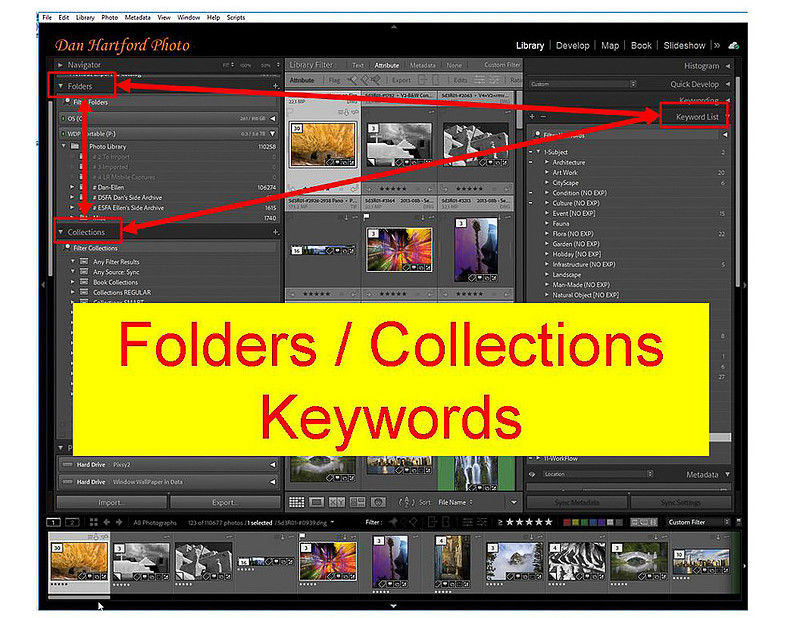
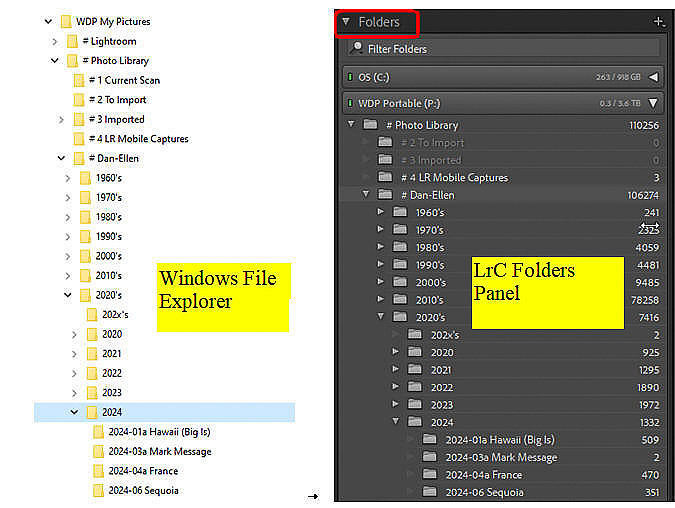
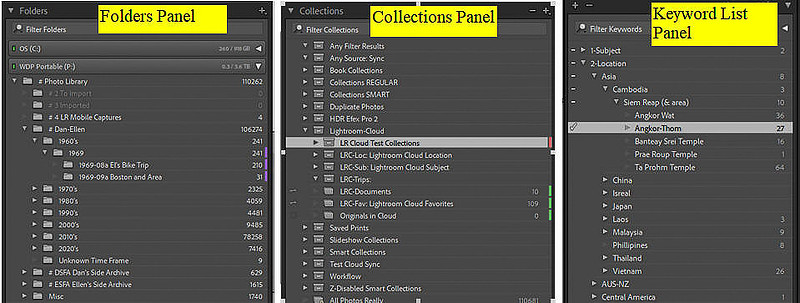
LrC provides for all of these and offers several ways to help manage and organize images to achieve these goals such as Folders, Collections, Keywords, Pick Flags, Color Labels, and Star Ratings. All of these have a use and can be used to help find and manage images but today I want to compare and contrast Folders, Collections, and Keywords. FOLDERSFolders in LrC, represent the actual physical location of images on your system disk drive(s). As such, the Folders Panel in the Library Module mimics what you see in Finder (Mac) or File Explorer (Windows), but with some exceptions.
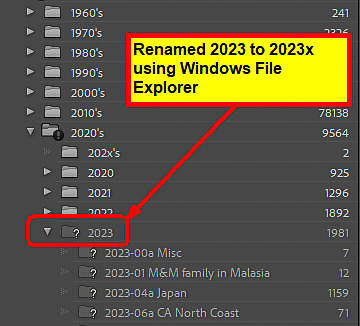
The first exception is that the Folders Panel does not show you every folder on every drive on your computer system. It only shows you folders which contain images that have been imported into LrC along with some level of parent folders. By default it shows you a limited number of parent folders but if you right click on a folder name and select “Show Parent Folder” then it will expose the next higher parent of that folder. Sometimes you need to repeat this for each successive parent in order to get to the level you wish to see. The second exception is that information in the Folders Panel may become invalid. This can happen if you make changes to the folder structure outside of the LrC Folder Panel. For example you use Mac Finder or Windows File Explorer to rename or move a file or folder, or do either of those things to any parent folder of a folder known to LrC. In addition, on a Mac if you change a drive name outside of LrC or on Windows the drive letter changes. In all of these cases, what you see in the LrC Folders Panel is the last place LrC was able to find the folder. If the path to that folder no longer exists as it had, then it still shows the old path and names but with a “?” on the missing folder icon and an exclamation point on all the parent folder of the missing folder. To get the screen shot below, I renamed the “2023” folder using my OS to “2023x” resulting in the folder, and it’s subfolders, all now showing as missing in LrC
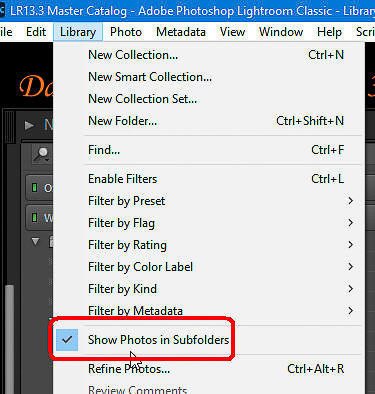
The “?” indicates that LrC can no longer find that folder using the path and name it had before. When this happens, right click on the folder name and select “Locate Missing Folder”. This will bring up a Finder or File Explorer dialog box where you navigate to the new location or renamed folder and select it. This will cause LrC to update its folder path and name information. The exclamation point in a black circle means that this is the parent folder where at least on of its subfolders is missing (has a “?” on it). Every image in LrC can only be in exactly 1 folder – no more – no less. An image that is missing, is still thought by LrC to be in the last folder it was seen in even if that folder is no longer on your system with the same name and in the same folder structure. This does not mean that you may not have duplicate images scattered around your system, but each image in the LrC catalog is associated with one and only one image file on disk (I’m ignoring VC’s which allow 1 physical image to be shown more than once in LrC with each one having different treatments and different data). If you have “Show Photos in Subfolders” turned on (menu “Library”), then when you look at a parent folder the image counts include that folder as well as all of its subfolders and if you select that parent folder the grid/filmstrip will include all the subfolder images as well.
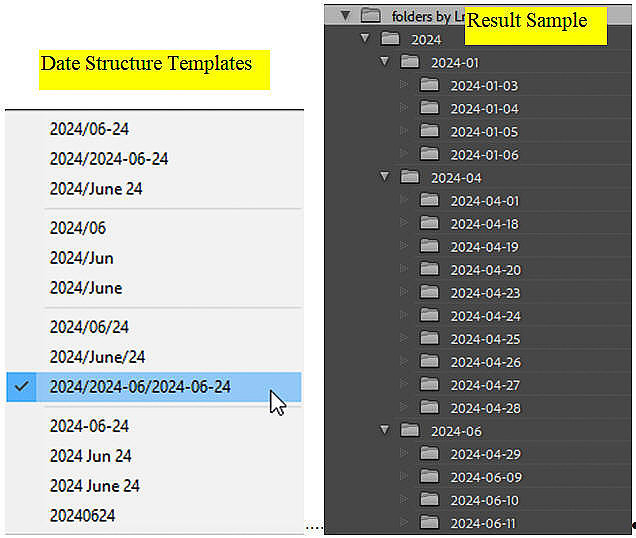
Use of FoldersFolders are useful as a rough cut way to group images and to keep things in order in your computer file system and not have tens of thousands of images all in one folder which can become unwieldy. Many people let LrC automatically manage the folder structure by date when importing new images. This automatic date structure uses the capture date of each image to determine what folder to put it in and LrC automatically creates new folders as it goes along when needed . The user has some control on the structure of these date oriented folders. For example, do you want a year folder with a folder for each day under it vs. a year folder containing month folders which in turn contain day folders. Also, do you want 2 digit month numbers, 3 character month name abbreviations or spelled out month names. Those are just a few of the options but the result is a date based structure. Here are the options with an example (a slash in the options name indicates a new folder in the hierarchy)
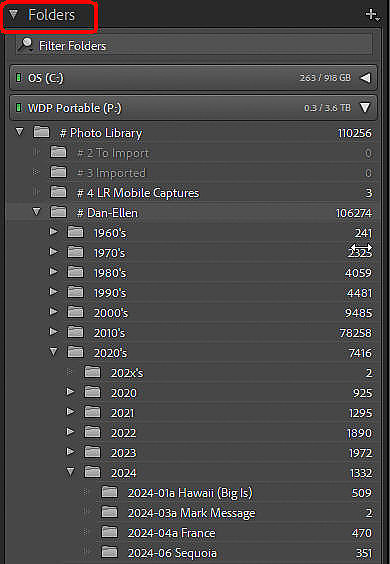
But, an equally large number of people manage their own folder structures in whatever way they see fit. However, in the majority of cases the detail folder is usually for a specific shoot, trip, or event with some identifying text as part of the folder name. For example “2023-03 France”, or “2010-07 Fred’s Birthday Party”. Structures like this make browsing easier than just having a date. This is the method I use (example below)
One should be warned that using folders for other purposes is not a great idea. For example, using folder names for subject classifications has some deadly pitfalls such as what do you do with a photo that fits the definition of more than one subject folder? For example, a photo of my family in front of Yosemite falls could go into the family folder or into the waterfall folder or even a landscape folder. In fact, as it turns out, there should never be ambiguity as to what folder any image rightly belongs in and any image should not rightly belong in more than one folder. Except for some odd cases, the only metric which meets this criteria is a chronologically based structure where any one folder encompasses a defined period of time. Any individual image can only have one capture date/time or one creation date/time so can logically only belong to one folder (assuming date/time ranges for folders do not overlap). Of course there are exceptions like a wedding photographer who has one folder per wedding with subfolders for different phases of the wedding (proposal, stag/hen party, rehearsal dinner, getting ready, ceremony, reception). Some people like having one folder per day. Others like one per month or even year. Others, like myself, use one folder per shoot; where a shoot is a specific event (e.g., wedding, birthday party, solar eclipse, etc.) or a trip (e.g., 2018 trip to France). But, at the end of the day, the folders panel can be a very easy way to limit the set of images in the grid and filmstrip to just those from a particular trip, event or time frame. COLLECTIONSA collection is like a virtual folder, or a playlist in Apple Music or Spotify. When you place an image into a collection, it does not make a copy of the image but rather it puts a pointer to the image into the collection. In other words it is a list of images but rather than showing you a list it shows you the images referenced by the list. Unlike a Folder where any particular image can only be in one folder an individual image may appear in any number of collections. Much like a song can appear in multiple playlists. Collections come in two flavors, Smart Collections and Regular (or Dumb) Collections. With a Regular Collection you manually place images into the collection by dragging them to the collection from the grid or filmstrip. To remove images from a Regular Collection, you select them and hit the “delete” or “backspace” button on the keyboard or right click and select remove from collection. A Smart Collection works differently. Here you specify a set of rules and LrC automatically adds or removes images depending on whether or not the image satisfies the rules of that collection at that moment. For example, a Smart Collection may be set up to show only images that were taken within the last 2 years and have a star rating of 3 or greater; or were taken at any time but have 5 stars. The Collections Panel can be seen in all the modules
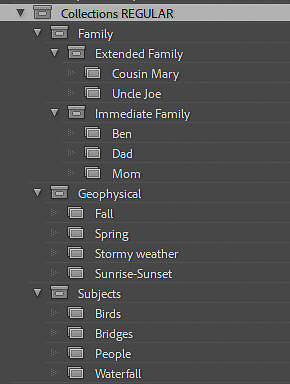
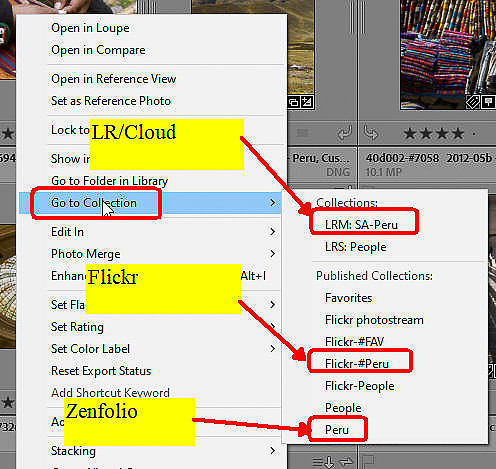
If you wish to sync images with the Adobe Cloud based LR ecosystem, those images must be placed in regular synced collections (not Smart Collections) – one of which is the “All Synced Photographs” special collection in the Catalog Panel. All images in synced collections are automatically also in the “All Synced Photographs” special collection. Use of CollectionsCollections are used to group images that have some common attribute or for some common purpose. In many regards this can also be done with Folders and Keywords. Some folks mimic their entire folder structure as collections but I don’t see the value in doing so other than being able to select them in modules other than the Library Module. Many other people, especially those that just let LrC deal with the folder structure by selecting one of the date structures, use Collections to group images from the same event or trip. Collections (like Keywords) can also be used for categorizing or classifying images. For example you could have a collection of waterfall images, and another of family members and maybe a collection for each trip. Whatever grouping comes to mind can be implemented as a collection without having to move images about on your hard drives. So, the sky’s the limit.
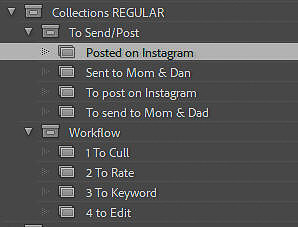
This can go further into using collections to help keep track of image workflow or status. For example a collection for images that need to be edited, images that need certain keyword types, images that are good candidates for your camera club competitions, or those you have sent to dad.
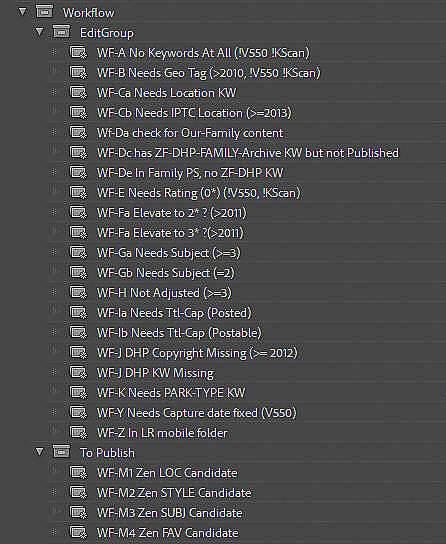
For workflow type collections, if you use smart collections in conjunction with Keywords, many times the images self populate into the collections making it much more reliable. For example here are some of my Workflow oriented smart collections
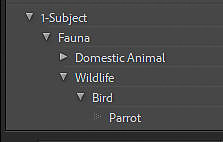
If you want more information about using Smart Collections for workflow, see this article KEYWORDSKeywords are like hash tags in many ways. Keywords can be individual words or short phrases that provide some information about the image they are attached to. Any individual image may have many keywords and, of course, any keyword may be assigned to any number of images. Keywords can be used to help find images and to provide information about the image. Unlike Folders and Collections, Keywords are designed to (optionally) be included in the metadata on images when they are exported. Like folders and collections, keywords can also live in a hierarchy. Hierarchical keywords have a great advantage as an image that has a keyword inherits the parent keywords. Those inherited parents are called “implicit” keywords. For example, if I have a keyword structure like this…
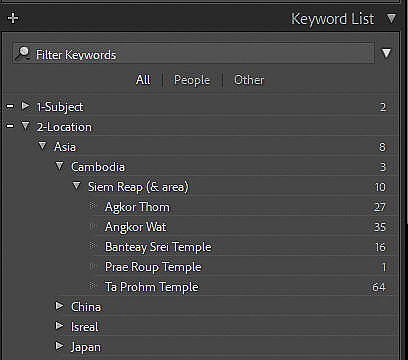
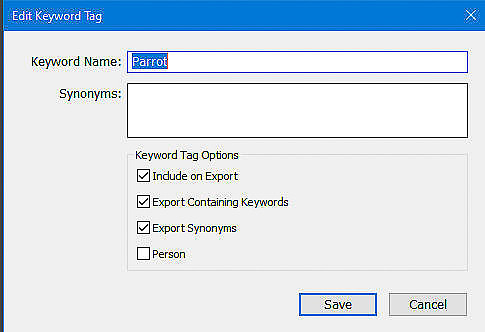
… and I explicitly assign keyword “Parrot” to an image, it automatically inherits “Bird”, “Wildlife”, “Fauna”, and “1-SUBJECT”. Any one of these 5 keywords can be used in filters, searches, and smart collections. Here’s a sample of a keyword hierarchy for the Siem Reap area of Cambodia.
By checking or un-checking boxes when creating/editing the keyword you can specify if the keyword is to be included on export. In my parrot example, I’d set “1-SUBJECT” to not export but would allow “Fauna”, “Wildlife”, “Bird” and “Parrot” to export.
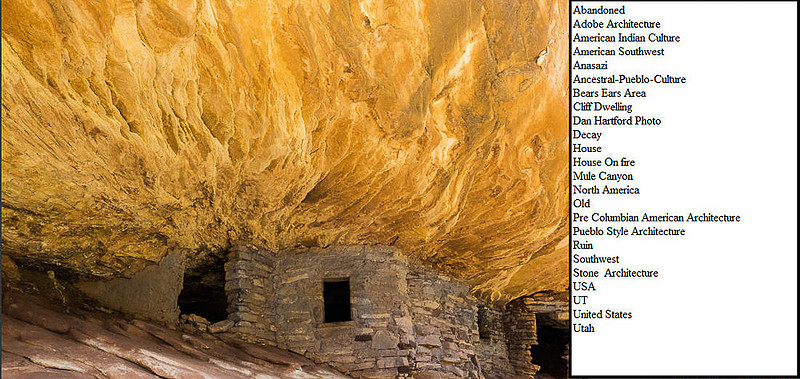
If you use the Face Detection feature of LrC, a Keyword with the “Person” attribute is used for each named person. This means that the keyword may point to a specific face region in the image rather than to the entire image but for all intents and purposes they work the same way. Use of KeywordsKeywords are great for documenting the content, other shooting information, history of images and Misc other information. Below is an image with a list of the keywords that will export with the image.
For content type keywords we’re talking about two things. First is the actual content of the image.
The other includes things like
Anyway the list goes on and on For shooting information, much of it comes from the camera but here I’m talking about things like multiple exposure or time lapse types of things. And then there is history. By this I mean the history of where this image has been distributed.
Then, of course, there is the ever present “Other” or “Misc”. for anything else you may want to associate with the image that doesn’t fall into any of the above such as
I have two other articles related to Keywords A more detailed explanation of setting up a keyword structure can be found here. Special considerations and techniques for setting up keywords related to people to allow complex mix and match searches can be found here. See my other blogs for more information about how to structure and use your keywords,
Keywords vs. Collections vs. FoldersFolders and Collections both are considered “sources” of images within LrC and determine the unfiltered set of images which can be seen in the grid and filmstrip. Keywords are attributes associated with individual images. There is a lot of overlap in the usage of folders and collections (not as much between Keywords and folders/collections) but there are also a lot of differences.
Similarities
DifferencesThe checkmarks are my opinion of which type of organization (Folder, Collection, Keyword) has the upper hand for various features or uses.
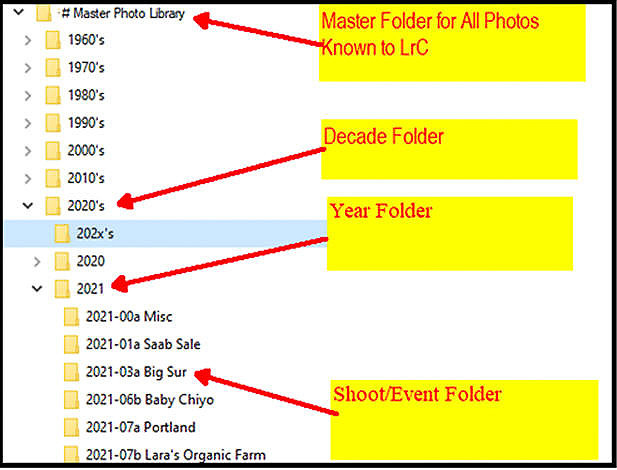
How I Use TheseThere are as many different answers to the question of how to use these 3 panels as there are people using LrC. If you do any research or take workshops you will find that every instructor, blogger, and YouTube influencer suggests something different. So, the best I can do is to tell you how I use Folders, Collections, and Keywords. I’m not saying this is the best, just that after experimenting with most of the others, this is the one that works for me. How I use FoldersI manage my own folders by shoot/trip/event rather than letting LrC mange a date only folder structure even though it requires a bit more attention during import. I use a structure that has a master parent folder for all images. Inside that is a folder per decade and inside that is a folder per year. Within the year folder is a folder per shoot/trip/event as shown below.
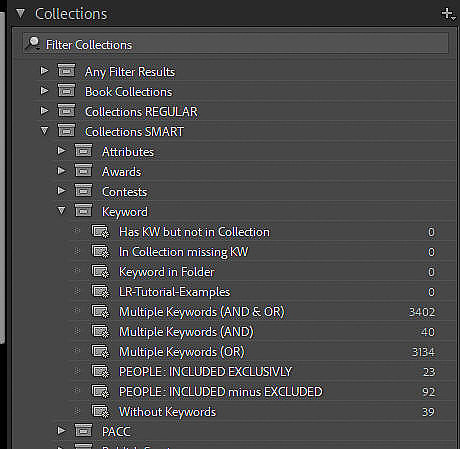
You’ll notice that this too is a date oriented structure but with just a bit of info about what the folder is pertaining to. How I use CollectionsI use Collections for more process oriented information. In most cases these are Smart Collections based on various metadata fields. I have many collections for different attribute combinations, for example images that are in a particular Collection but don’t have a particular KW. I have a set of collections for images I sync to the LR/Cloud or were created by LrC from the Print or Book modules. There are also collections created by various Plug-ins that I use from time to time. But, my main use is a set of Smart Collections which I use to manage my workflow. These smart collections auto update based on the status of the metadata. For example if I assign GPS coordinates to an image, it immediately comes out of the “WF-B Needs Geo Tag” smart collection without further action on my part. See this article for more information.
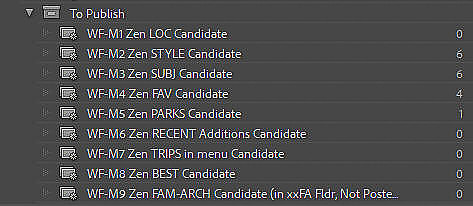
Still in the workflow area, I use smart collections to identify images that are not published to my websites but should be and another set for images that are published to my websites but that I should remove from those sites (they are too old, or I lowered the rating in LrC). Here’s a sample showing images that should be added to various sections of my Zenfolio website. There are also sections for Flicker, Facebook, Instagram, Twitter (X), and Fine Art America (not shown)
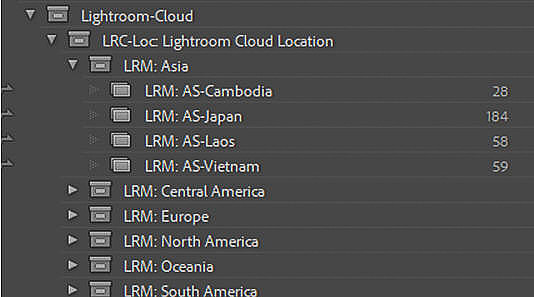
I also have a set of collections for images that are synced to the LR Cloud. These collections mirror the Album structure I have in the LR Cloud.
You’ll notice that I don’t use Collections to group images by shoot, event, date, or trip as I do that with folders. You’ll also notice that I don’t have Subject or Location related collections as I do that with Keywords. Collection tip
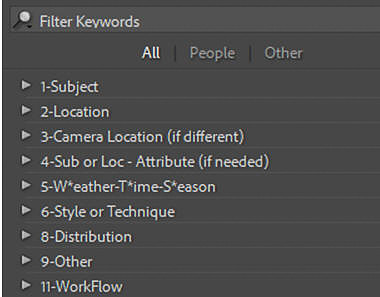
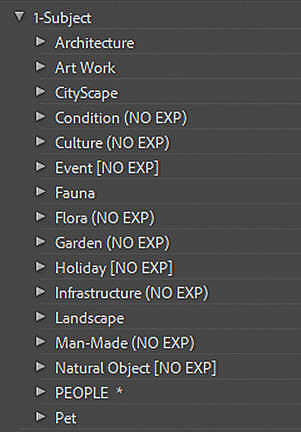
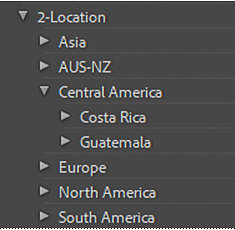
How I use KeywordsThis is the heart of my method for finding images based on subject matter, names of people and places, and image aesthetics. I do this by having groups of keywords where each major group contains keywords of a certain type. For example I have a group for SUBJECT, another for LOCATION, and several others. I also have a group of keywords that I use in conjunction with my workflow related smart collections. For example, I have a smart collection that contains images that need to have GPS coordinates added. But, some images like a photo of a paper document has no need for GPS coordinates so I have a KW that tells the smart collection which images it should ignore. ' See here for a more detailed discussion of how I use keywords See here for more information on my use of smart collections and keywords for workflow Here is a condensed overview of my keyword setup. First, is the set of Keyword “groups” some of which I mentioned above. I number them just to keep them in the order I tend to think about them in.
And a 2nd level example of my SUBJECT section
And, the 2nd level example of the LOCATION section
The bottom line for keywords is that they can be used for anything you think will be useful in the future to either help find images, document something about the image, or to keep track of what has or hasn’t been done with the image. ConclusionBy using a combination of Folders, Collections (both Smart and Regular) and Keywords you can pretty much cover all your image management needs. I’m not saying these are all perfect solutions but they are certainly able to do the job. I want to leave you with one final thought. However you decide to use Folders, Collections, and Keywords, be consistent. For example if you decide to use keywords for the subject matter of images, then don’t all of a sudden decide to create a collection for some subject. Creating a Smart Collection based on the subject keyword is fine but start with the Keyword if that’s what you decided would be the repository of subject matter information. Thanks for reading and I’d greatly appreciate it if you’d leave a comment at the bottom of this article and would post a link to this (or other) articles on whatever social media sites you use. Final CommentYou’ve made it to the end of this article. I hope you found it informative and useful and that it addressed whatever it was that led you here. If you’ve stumbled upon any errors, omissions, or things that could be presented better, please let me know by leaving a comment. You may have noticed as you read through this article that you were not required to logon or to create an account. I did not ask you for a credit card number. You did not have to provide an email address or phone number and you were not bombarded with pop up ads. I did not lure you part way into the article and then tell you to pay for a subscription to get the rest. Nobody paid me to write this article. I have no sponsors. I have no advertisers. I spend many hours researching, testing, and writing articles such as this one to help folks such as yourself and to attract people to my web site where they may be inclined to utilize my one-on-one Lightroom Classic Training or Lighroom Help consulting services. So, I am going to ask you for a favor. Please spend a few minutes and leave a thoughtful comment. That’s it! If you feel especially motivated also post a review on Google and/or Yelp for “Dan Hartford Photo”. Free to you, very helpful to me. If it wants you to create an account in order to leave a comment and you’d prefer not to, send your comment to me via the "Contact+About" menu and I'll post it for you (include the blog number or name).
META Description (up to 155 characters) Understand Lightroom Classic Folders / Collections / Keywords. How are they simiar and how are they different. How to use them. Keywords (use quotation marks around two or more words) collections, "collections panel", danlrblog, folders, "folders panel", "keyword list panel'", keywording, keywords, lightroom, "lightroom classic", lrc Or choose from your most used keywords: dan hartford photo, dantravelblog, blog, Blog, DanTravelBlog, Travel Blog, Travel Log Featured Photo The Featured Photo represents your blog post on blog summary pages and when sharing to social networks. 16 LR022 Folders, Collections, Keywords Cover Graphic (first photo in the post)Select Photo Comments Allow Comments Allow new private comments (only you can see them) Allow new public comments (anyone can see them) Allow new comments from users not registered with Zenfolio Public comments must be approved before others can see them Publish: More Links Toolkit Support Center Forums Online Training What's New Language Product Features Pricing Benefits Toolkit Company About What's New Partners Jobs Feature Ideas Community Testimonials Forums Blog Zenfolio Ambassadors Events Help Support Center Online Training Zenfolio API Free Guides Site Status © 2026 Zenfolio, Inc. | Terms of Use | Privacy Policy Zenfolio is a registered trademark of Zenfolio, Inc. SEARCH PHOTOS Recent | Popular
Keywords:
collections,
collections panel,
danlrblog,
folders,
folders panel,
keyword list panel',
keywording,
keywords,
lightroom,
lightroom classic,
lrc
Comments
Hi Doug,
Thank you for your well thought out comment on my “LR022 - Folders vs. Collections vs. Keywords” article. Yes, LR (cloud) does have a tool they call “sensei” which analyzes the visual content of images to select those images that seem to have what you asked for. For example “waterfall”. I’m sure this will get better over time, but it is currently limited to only a specific (and undisclosed) list of things it can search for. This tool pre-dated AI as we know it today and I’m not sure if they’ve incorporated newer AI tech into that code. And, as you say, there are other products on the market that also have varying levels of content search capability. In regards to sensei in the LR/Cloud apps, one of the weaknesses (IMHO) is that even though you can search for something by name (e.g., “Lion”) those words do not get added to the image as keywords and thus do not go along with those images when exported. So, it’s really a “search/find/filter” sort of thing and not a means to “tag” images which other websites or apps can make use of. It would be real nice we could select a bunch of images and tell Sensei to add keywords for all the things it is capable of finding in each image, but maybe we’re just not there yet. Until we have more universal AI filtering across platforms and products, I think that Keywords/tags will remain an important tool. For example I upload images to my store on Pixels.com (aka Fine Art America) which uses the Keywords form LrC to find images where potential purchasers search for those words. Thanks again for posting a comment
Doug Kalish(non-registered)
Thanks for this informative summary. I believe that AI will eliminate the need for content-based keywords in the near future. Although I haven't used it, I understand that it is possible to search by description in LR Cloud. I upload all my photos to OneDrive which also has an AI-based image search. Recently I needed to find the filename of my photo of a sweat bee which lost its metadata when I loaded it into PowerPoint. In OneDrive I first typed 'native bee' which returned hundreds of my photos, none of which was the one I wanted. I tried 'native bee on a yellow flower' with no luck either. Finally I tried 'green bee on a yellow flower' and my photo (from 2020!) was among the first twenty or so returned. I think this will be much more useful than trying to maintain a list of content-descriptive keywords, although of course it won't work for 'photos I sent to my Dad', etc.
No comments posted.
Loading...
|